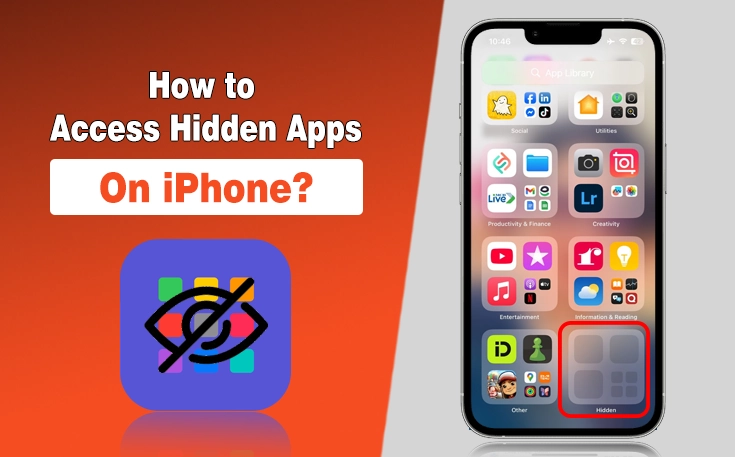
Have you hidden the apps on your iPhone for privacy concerns, and now want to know how to access hidden apps on iPhone?
No worries!
Apple has provided an excellent feature of hiding apps so you can remove your most secret apps on your iPhone from the homepage and app library without uninstalling them. Further, the apps you hide are password-protected or require Face ID to access.
It means that no one can reach them without your permission. Sounding good, nah!
But now, you are required to open them for any desired purpose, but you do not know where they are currently present. Really want to access them?
What are you waiting for? Go through this guide, as I have detailed a step-by-step guide on how to access hidden apps on iPhone.
What are Hidden Apps on iPhone?
Hidden apps on an iPhone are applications that are not immediately visible on the Home Screen but still exist on the device.
They can be hidden intentionally using features like the App Library, folders, or the “Remove from Home Screen” option, or unintentionally if they’re buried deep in multiple pages or folders. Some apps, whether they are free music apps, travel apps, or other best iPhone apps, may also be hidden through Restrictions or Screen Time settings, limiting their visibility.
Hidden apps are still installed, which means they can be accessed through search or settings. This feature helps with privacy, organization, and reducing clutter, and allows you to keep certain apps out of plain sight.
How to Access Hidden Apps on iPhone?
- Keep on swiping the homepage of your iPhone to the right until you reach the app library section.
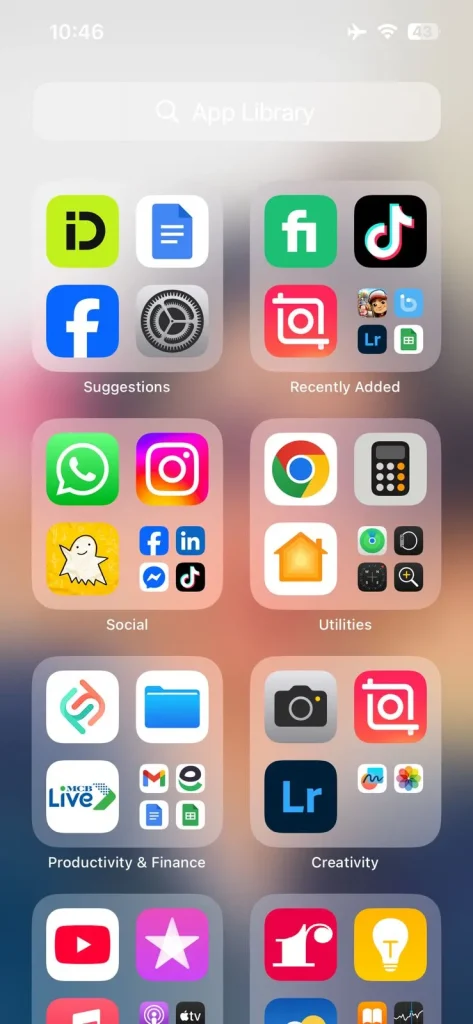
- Now, go to the bottom by scrolling.
- A box with the title of “Hidden” will be present here. Click on it.
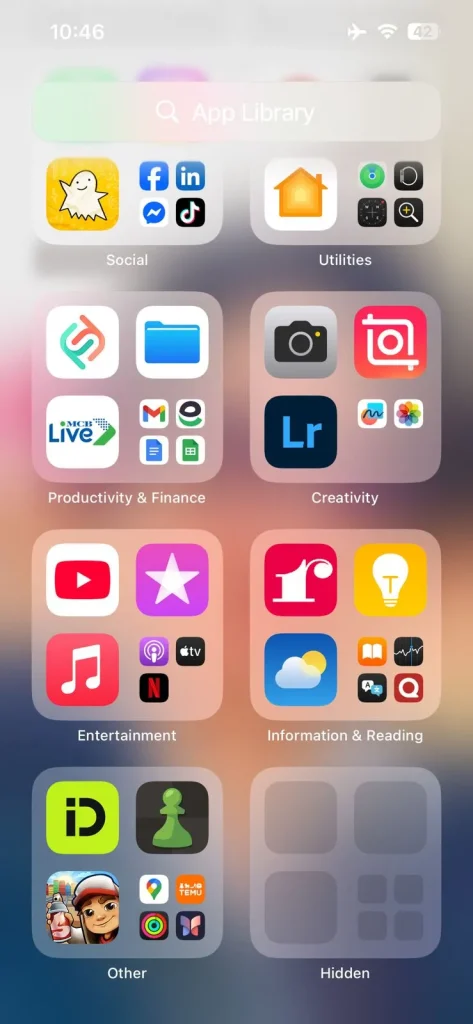
- You have to authenticate the pop-up with your Face ID or Passcode.
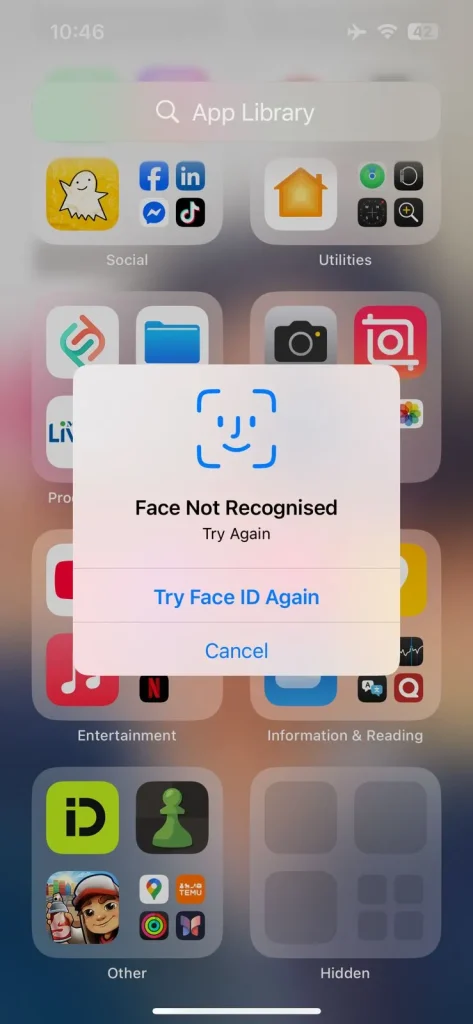
- Now, you will be able to find hidden apps on iPhone.
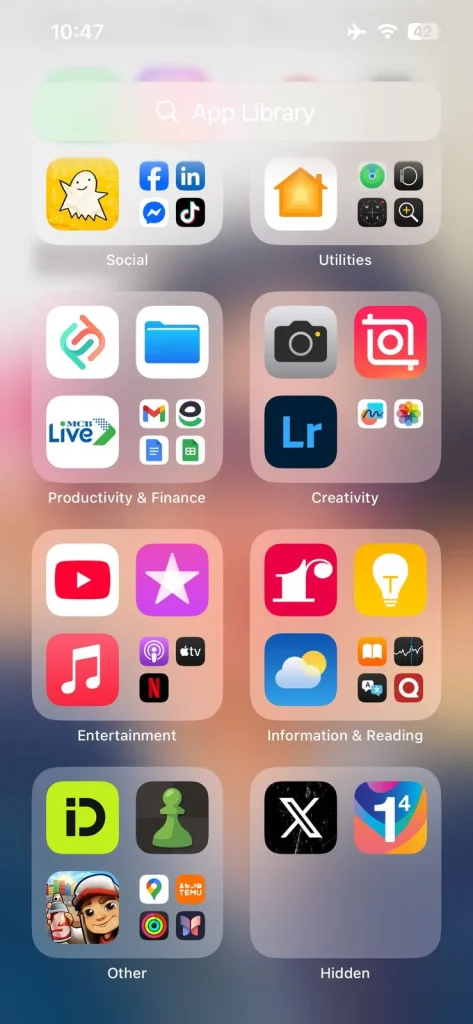
Next, you may be wondering how to open hidden apps on iPhone. Simply put, when you click on these apps, they will launch and perform normally.
How to Unhide Apps on iPhone?
- Open the Hidden section again to see the apps you hide through your Face ID or Passcode.
- Now, click the hidden app and wait until the pop up appears.
- There, you have to tap the “Don’t Require Face ID” option.
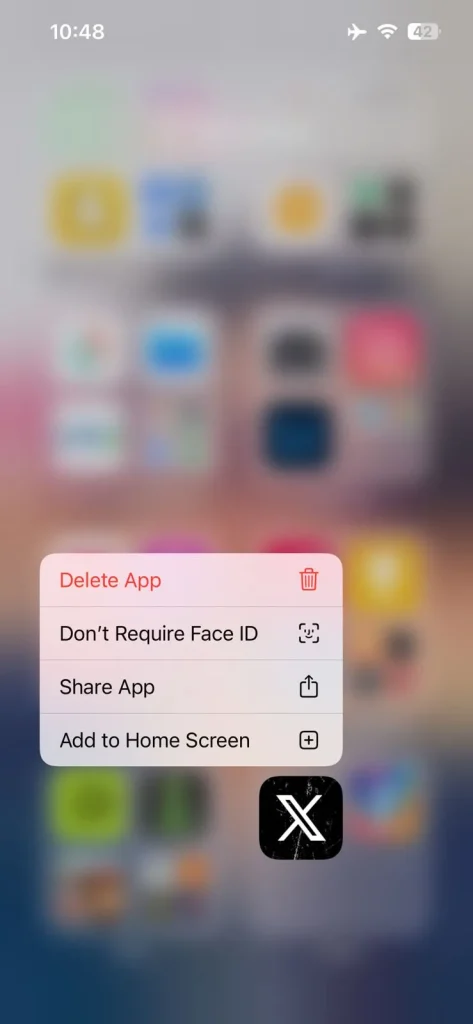
- Again, it will ask for authentication with Face ID or a passcode.
- After that, you can find the previously hidden app on your homepage and in the App Library.
Final Thoughts on Hidden Apps on iPhone
These are the details about how to see hidden apps on iPhone. I have been through this stage as well when I first hid apps on my smartphone and was unable to find them later.
I know how frustrating this experience can become. That’s why I considered creating this easy-to-understand guide. Just learn the steps I have listed here, and boom! You will easily be able to get your hands on your hidden apps.
Also, I have explained how to unhide apps on iPhone. So, now, you have all the information. Hide the apps, access them, or unhide them; it all depends upon your preferences.
People Also Ask
How to access hidden apps on iPhone iOS 18?
Swipe to the App Library, scroll to the bottom, tap Hidden, and authenticate with Face ID or your passcode.
Where are hidden apps located on iPhone?
Hidden apps are stored in the Hidden folder at the bottom of the App Library.
Can I open hidden apps without Face ID or a passcode?
No, you must authenticate with Face ID, Touch ID (if supported), or your device passcode to access hidden apps.
Does hiding an app delete it from my iPhone?
No, hiding an app only removes it from normal view while keeping it installed with all its data intact.
How do I unhide apps on iPhone?
Open the Hidden folder, authenticate, press and hold the app, and choose the option to unhide or remove Face ID protection (depending on your iOS version).
Need custom app with amazing features?
Get a Quote