Owning a Samsung Smart TV is like having a mini entertainment universe in your living room. It is no longer just about changing channels or connecting a cable box. With the right apps, your Samsung TV can do so much more.
Although you cannot enjoy the benefits of VR apps like the AR Zone app, you can binge-watch the latest shows, explore live TV without paying extra, listen to your favorite songs on music apps, and even follow workout sessions at home.
In this blog post, I am going to share the top 10 Samsung TV apps that I personally believe can completely change the way you use your smart TV.
What are the Best Samsung TV Apps?
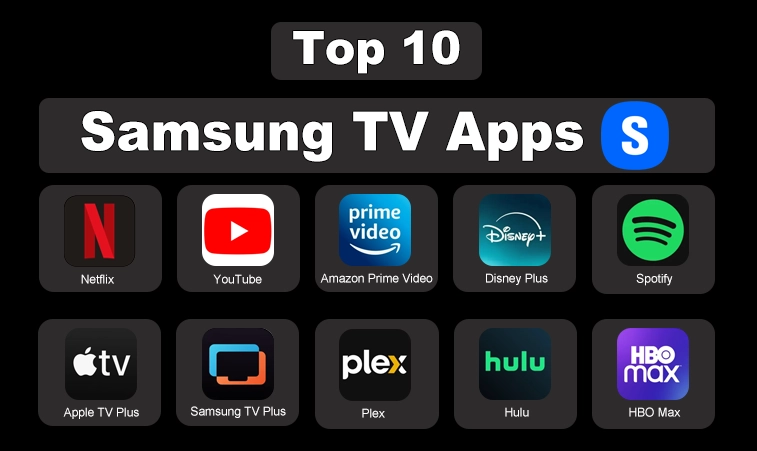
The best Samsung TV apps are:
- Netflix
- YouTube
- Amazon Prime Video
- Disney Plus
- Spotify
- Apple TV Plus
- Samsung TV Plus
- Plex
- Hulu
- HBO Max (Max)
What are the Best Samsung TV Apps for Free Movies?
The best Samsung TV apps for watching free movies are:
- Samsung TV Plus
- Plex
- YouTube
What are the Best Free Apps for Samsung TV?
The best free apps for Samsung TV are:
- Twitch
- Samsung TV Plus
- Spotify (free tier)
What is Samsung TV?
A Samsung TV is a high-quality television manufactured by Samsung Electronics, known for its advanced display technology and smart features.
It is available in various types, including LED, QLED, OLED, and 4K or 8K Ultra HD models, designed to deliver stunning picture quality, vibrant colors, and immersive sound. Samsung Smart TVs go beyond traditional viewing by offering built-in internet connectivity and access to apps like Netflix, YouTube, and Disney Plus.
They also feature voice assistants, screen mirroring, and gaming options, and turn the TV into an all-in-one entertainment hub for movies, shows, music, sports, and interactive experiences. However, you cannot download dedicated best Samsung apps that are available on mobiles to your TV.
Top 10 Samsung TV Apps for Better Experience
List of Top 10 Samsung TV Apps
- Netflix – The Streaming Giant for Endless Entertainment
- YouTube – Your Gateway to Unlimited Free Content
- Amazon Prime Video – A Competitor Worth Having
- Disney Plus – The Home of Disney, Pixar, Marvel, and Star Wars
- Spotify – Bringing Music to Your Living Room
- Apple TV Plus – Premium Streaming at Its Best
- Samsung TV Plus – Free Live TV Channels
- Plex – Your Personal Media Server
- Twitch – A Blend of TV and Streaming
- HBO Max (Max) – Premium Movies and Shows in One Place
Below, I am going to take you through the top 10 Samsung TV apps that can completely transform your viewing experience, breaking down their standout features one by one.
1. Netflix – The Streaming Giant for Endless Entertainment
Netflix is the app that almost every smart TV owner installs first, and for good reason. It has become the gold standard of online streaming. When I use Netflix on my Samsung TV, I feel like I have an entire cinema right at home.z
Before exploring its features, let me say one thing: Netflix is not just about quantity, it is about quality. The library is huge, but it is the personalized experience that makes it stand out.
- High-Quality Streaming: Netflix offers HD, 4K Ultra HD, and even HDR formats if your TV supports them. On a Samsung Smart TV, the colors and sharpness are outstanding, which really enhances the experience. Watching a thriller or an action movie feels like being in a theater.
- Personalized Content: One of the best things about Netflix is the recommendation system. It learns from what you watch and keeps suggesting shows and movies that match your taste. I find this extremely useful because I do not waste time scrolling endlessly.
- Multiple Profiles: If you share your TV with family members, Netflix allows you to create multiple profiles. This means your kids can have their own recommendations, and you can enjoy your thrillers without being interrupted by cartoons on your home screen.
2. YouTube – Your Gateway to Unlimited Free Content
YouTube on a Samsung TV is like having a world of free content at your fingertips. Unlike paid platforms, YouTube gives you access to almost anything you can imagine, from music and gaming videos to tutorials and documentaries.
- Endless Variety: Whether I want to learn how to cook a new recipe or catch up on sports highlights, YouTube always delivers. The variety is unmatched, and since it is free, you never feel limited.
- Subscriptions: By subscribing to your favorite creators, you get instant updates whenever they post something new. This keeps your homepage filled with videos you are likely to enjoy.
- Casting Feature: One of my favorite features is the ability to cast a video from my phone to the Samsung TV. If I am watching something on my phone, I just press the cast button, and suddenly it is playing on the big screen.
3. Amazon Prime Video – A Competitor Worth Having
Amazon Prime Video has quietly grown into one of the strongest streaming services available. On my Samsung TV, it gives me access to movies, shows, and exclusive originals that I cannot find on Netflix.
- Diverse Content: Unlike some other streaming apps that focus mostly on English-language content, Prime Video includes a lot of international shows and movies. It makes it perfect if you enjoy exploring content from different cultures.
- Download and Watch Offline: Although this works better on mobile devices, the ability to download shows and then sync them across devices is a big advantage. You can start watching a series on your Samsung TV and continue on your phone when traveling.
- Affordable Subscription: Compared to some competitors, Prime Video gives good value. If you are an Amazon Prime member, the video service is already included, which makes it even better.
4. Disney Plus – The Home of Disney, Pixar, Marvel, and Star Wars
Disney Plus is a must-have if you love family-friendly entertainment or blockbuster franchises. On my Samsung Smart TV, Disney Plus feels like a one-stop shop for nostalgia and modern classics.
- Exclusive Content: Disney Plus is the only place to watch Marvel series, Star Wars spin-offs, Pixar animations, and classic Disney films. For me, this makes it essential because no other app offers this collection.
- Kid-Friendly Profiles: Parents will love the ability to create kid profiles that only show age-appropriate content. It ensures children watch safe shows while adults still enjoy everything else.
- 4K Ultra HD Streaming: Disney Plus offers most of its content in 4K Ultra HD with HDR, which looks amazing on a Samsung TV. Watching animations in such quality makes the colors pop in a way that regular channels cannot match.
5. Spotify – Bringing Music to Your Living Room
Sometimes I do not want to watch anything. I just want background music while I relax, work out, or host friends. That is where Spotify on Samsung TV comes in.
- Personalized Playlists: Spotify builds playlists based on your listening habits. From workout sessions to late-night chill tracks, the app always seems to know what I need.
- Easy Navigation: The TV interface is simple, and I can quickly find the playlists or podcasts I want. The visuals on the big screen also make album art stand out beautifully.
- Shared Access: I like that I can control playback from my phone while the music plays on my TV. It feels seamless, and anyone in the room can join in.
6. Apple TV Plus – Premium Streaming at Its Best
Apple TV Plus might not have the largest catalog, but the quality of its shows and movies is stunning. That’s why I have mentioned it among the best Samsung TV apps. On a Samsung TV, the crisp visuals make their originals shine.
- Award-Winning Originals: Apple focuses on fewer titles but ensures they are of the highest quality. Many of its shows have won awards, and I personally find the storytelling fresh and engaging.
- Affordable Price: Apple TV Plus costs less than some other platforms, which makes it a great option if you want premium content without paying too much.
- Integration with Other Apple Devices: If you own an iPhone, iPad, or MacBook, Apple TV Plus syncs beautifully. You can start watching on one device and finish on your Samsung TV.
7. Samsung TV Plus – Free Live TV Channel
Not everyone wants to pay for streaming services. That is why I think Samsung TV Plus is one of the most underrated features. It comes pre-installed and is completely free.
- No Subscription Needed: There are no hidden costs. You just open the app and start watching live channels instantly.
- Variety of Channels: From news and documentaries to lifestyle and entertainment, the selection is surprisingly broad. For casual viewing, this app is more than enough.
- User-Friendly Interface: The navigation is simple, and since it is built by Samsung, it feels perfectly integrated with the TV.
8. Plex – Your Personal Media Server
If you are like me and have a collection of movies, shows, or personal videos stored on hard drives, Plex is a lifesaver. The streaming quality is brilliant, the collection is nostalgic, with a mix of latest releases, and the interface is amazing.
- Organize Content: Plex organizes all your media in one place with posters, descriptions, and categories, almost like having your own Netflix.
- Stream Across Devices: You can stream your personal library not just on your Samsung TV but also on phones, tablets, or even laptops.
- Free Movies and TV Shows: Apart from managing your own media, Plex also gives access to a catalog of free movies and TV shows, which is a nice bonus.
9. Twitch – The Home of Live Streaming and Gaming
Next, I have included Twitch among the best Samsung TV apps because it is the go-to platform for live streaming and gaming content. Whether you enjoy watching esports, game walkthroughs, or creative creators, Twitch offers endless entertainment for free.
- Live Streaming: You can watch millions of live streams covering gaming, esports tournaments, music, art, and real-life content. There is always something happening in real time.
- Interactive Chat: Twitch lets you interact with streamers and other viewers through live chat. This makes watching streams more engaging and gives you a chance to be part of the community.
- Follow Your Favorite Creators: You can follow streamers you enjoy and receive notifications when they go live. This makes it easy to keep up with your favorite content without missing a stream.

10. HBO Max (Max) – Premium Movies and Shows in One Place
HBO Max, recently rebranded as Max, is another must-have app for Samsung Smart TV owners. It combines HBO’s legendary library with content from Warner Bros., Discovery, and more.
- Exclusive HBO Content: From classics like Game of Thrones and The Sopranos to new hits like House of the Dragon, HBO Max has some of the most talked-about shows in the world.
- Blockbuster Movies: HBO Max is known for adding blockbuster movies soon after their theatrical release. If you enjoy watching the latest films in high quality, this app delivers.
- Kid and Family Section: Max also has a dedicated section for kids, making it a family-friendly option while still personalizing to adult viewers with premium content.
How To Download Apps On Samsung TV?
- Press the Home button on your Samsung TV remote.
- Navigate to Apps from the home menu.
- Select the Search icon (magnifying glass).
- Enter the name of the app you want to download.
- Select the app from the search results.
- Click Install to begin downloading.
- Once the installation is complete, select Open to launch the app or access it later from the Home screen.
Downloading apps on a Samsung Smart TV is a simple process. All you need is a stable internet connection and a Samsung account to access the app store.
How To Add Apps To Samsung Smart TV Home Screen?
If you frequently use certain apps, adding them to the home screen makes them easier to access.
- Press the Home button on your Samsung TV remote.
- Navigate to Apps.
- Highlight the app you want to add.
- Press and hold the Select button (or press the Down button, depending on your TV model).
- Choose Add to Home.
- The app will now appear on your home screen for quick access.
How To Update Apps On Samsung Smart TV?
Keeping your apps updated ensures you get the latest features, bug fixes, and security improvements.
- Press the Home button on your remote.
- Open Apps.
- Select the Settings (gear) icon.
- Turn on Auto Update to update apps automatically.
- If automatic updates are disabled, select an app and choose Update if a newer version is available.
How To Delete Apps On Samsung TV?
Removing apps you no longer use helps free up storage and keep your TV organized.
- Press the Home button on your remote.
- Go to Apps.
- Open Settings.
- Highlight the app you want to remove.
- Select Delete.
- Confirm your choice when prompted.
Note: Some pre-installed Samsung apps are built into the TV’s operating system and cannot be deleted.
How To Install 3rd Party Apps On Samsung Smart TV?
Samsung Smart TVs do not officially support installing third-party apps from unknown sources. For security reasons, you can only install apps available through the Samsung App Store.
If the app you want is unavailable, you may be able to access it using a compatible streaming device, web browser, or screen mirroring instead.
- Connect a streaming device such as an Amazon Fire TV Stick, Roku, Chromecast, or Apple TV to your Samsung TV.
- Install the third-party app on the streaming device using its official app store.
- Switch your TV’s input to the connected streaming device and launch the app.
- Alternatively, use Screen Mirroring, AirPlay (on supported Apple devices), or Smart View (on supported Samsung devices) to display the app from your smartphone, tablet, or computer on your TV.
- If the service has a web version, open the Samsung Internet Browser on your TV and access it directly through the browser.
Note: Avoid enabling Developer Mode or sideloading APK files on Samsung Smart TVs unless you fully understand the risks. Samsung does not officially support these methods, and they may compromise your TV’s security or void your warranty.
Final Thoughts
These are the details about the top 10 best Samsung TV apps.
Samsung Smart TVs become far more powerful when you use the right apps. From Netflix and Disney Plus for movies, to Spotify for music, to Plex for personal media, each app adds something unique to your experience.
Personally, I find a good mix of streaming, free live TV, and music apps keeps my TV both entertaining and practical. The beauty of these apps is that they fit different lifestyles. Whether you are a movie lover, a fitness enthusiast, or just someone who enjoys music, your Samsung TV has the perfect app waiting for you.
People Also Ask
Can I download apps on all Samsung TVs?
No, only Samsung Smart TVs with the Smart Hub support app downloads.
Are all Samsung TV apps free?
No, while many apps are free to download, some require a paid subscription to access their content.
Can I install APK files on a Samsung Smart TV?
No, Samsung Smart TVs do not support installing Android APK files.
Why can’t I find a specific app on my Samsung TV?
The app may not be available for your TV model, region, or operating system version.
Do Samsung TV apps update automatically?
Yes, if the Auto Update option is enabled in your TV’s app settings.
Need custom app with amazing features?
Get a Quote