
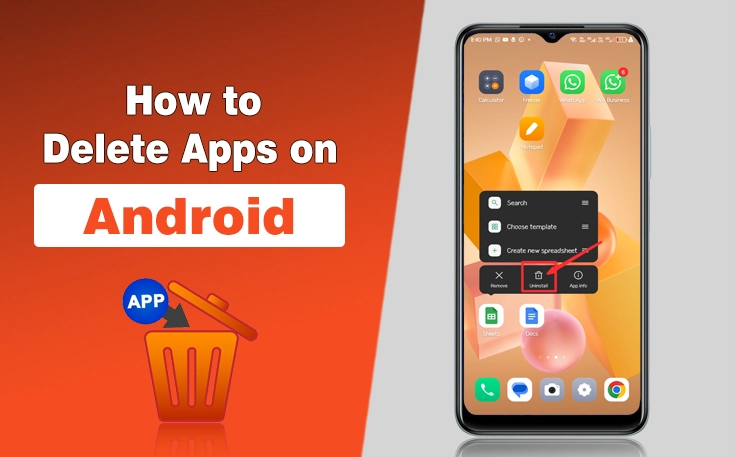
Want to get rid of unused apps but don’t know how to delete apps on Android? Like seriously?
Well, I know there can be some complications that make this procedure a bit tricky, as the app may freeze, and you won’t be able to restart the app. But don’t worry. I have created this guide for you to explain different methods that can assist you in deleting the apps from your smartphones to free up storage.
No matter which Android mobile you own, the process for deleting the apps is simple.
So, stick with this guide to learn how to delete apps on Android and add them to your bookmarks so you can access it easily if ever needed again.
How to Delete Apps on Android?
Remember, there is more than one method to remove the apps. I have explained them all so you can learn how to delete apps on Android quite comprehensively.
1. Delete Apps Through Home Screen
- Choose the app that you want to delete.
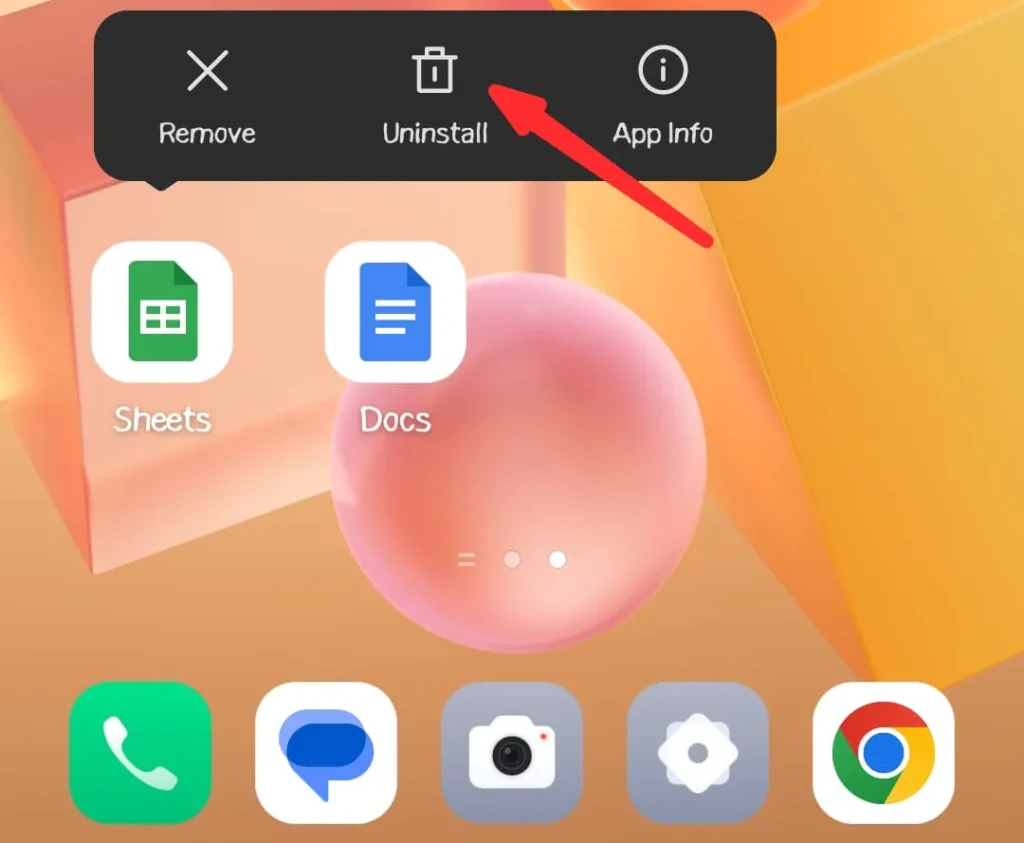
- Press and hold the app until a menu appears.
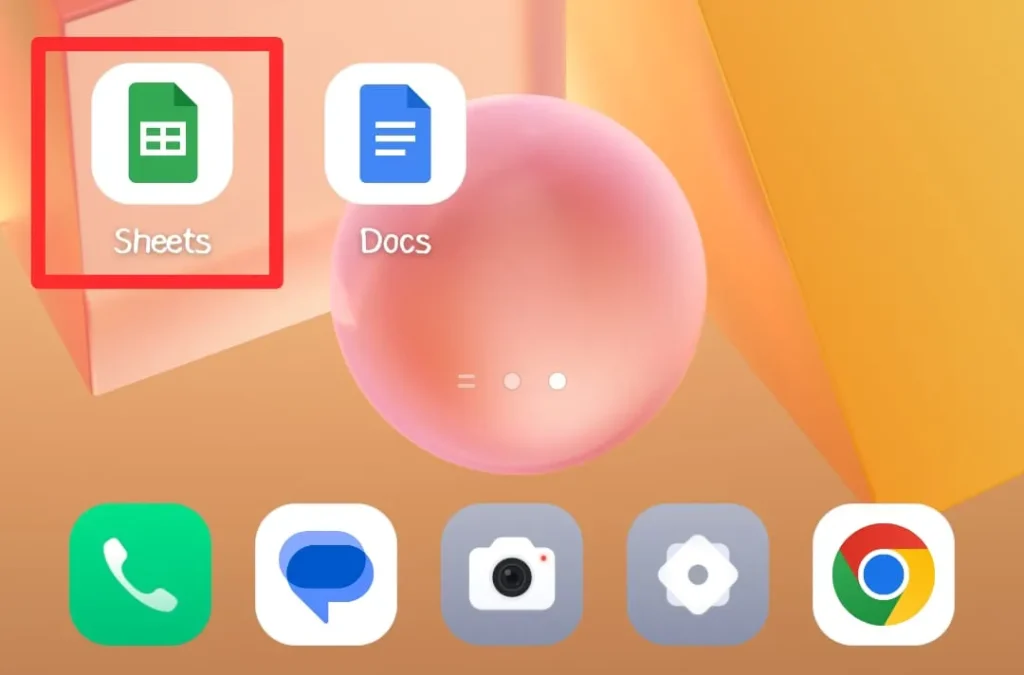
- Choose the uninstall option.
- Confirm the deletion by tapping OK.
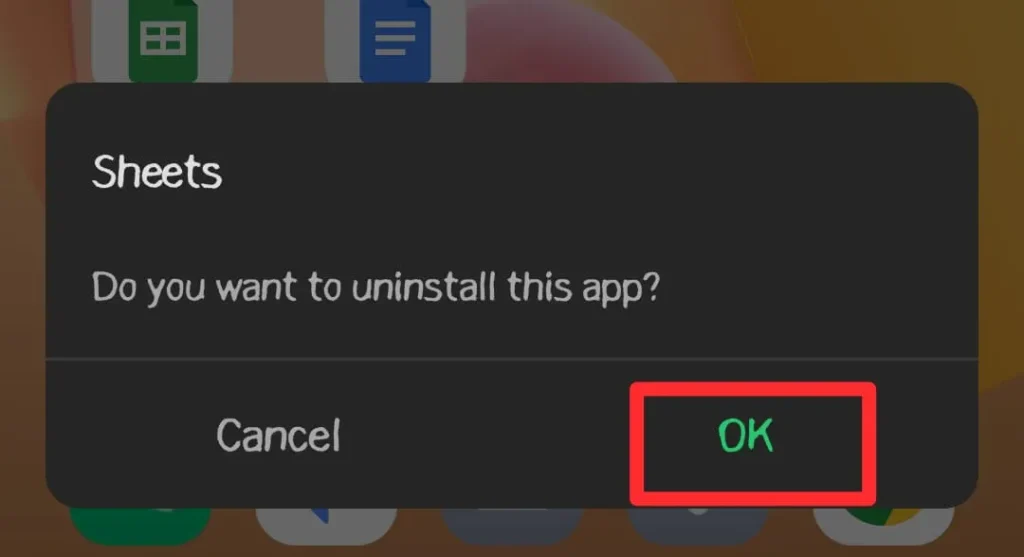
As a result, you will be able to delete the app on your Android mobile.
2. Delete App Through the Play Store
- Open the Play Store app.
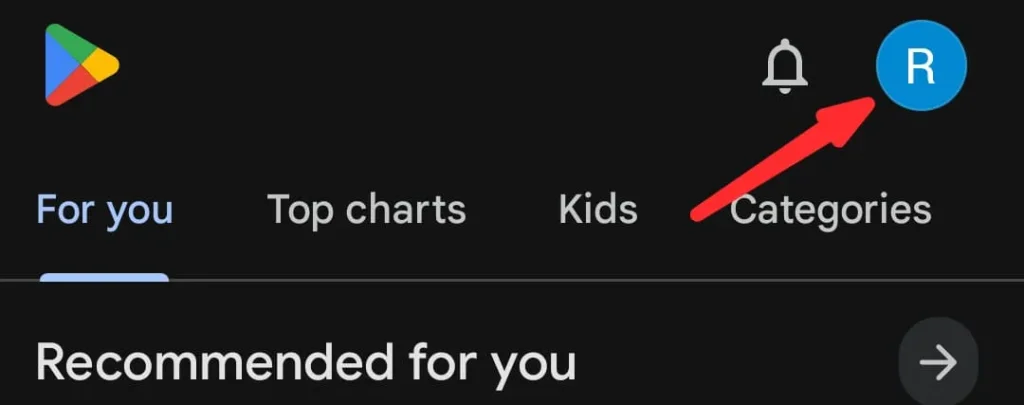
- Click on your profile picture or icon present in the top right corner.
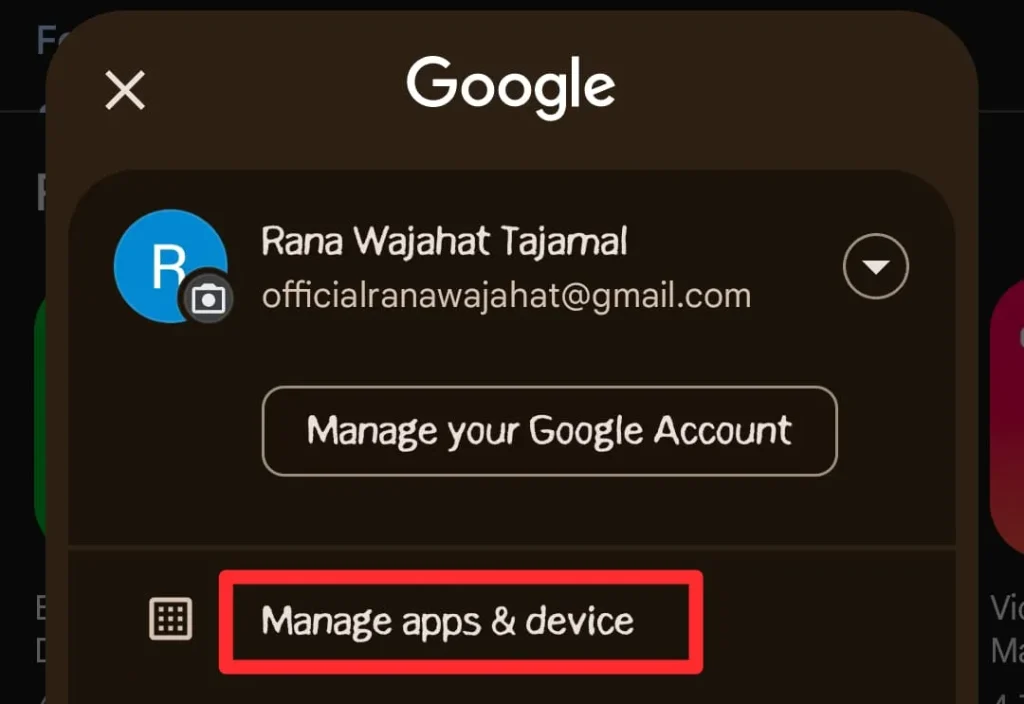
- A menu will open from where you have to choose “Manage Apps and Devices.”
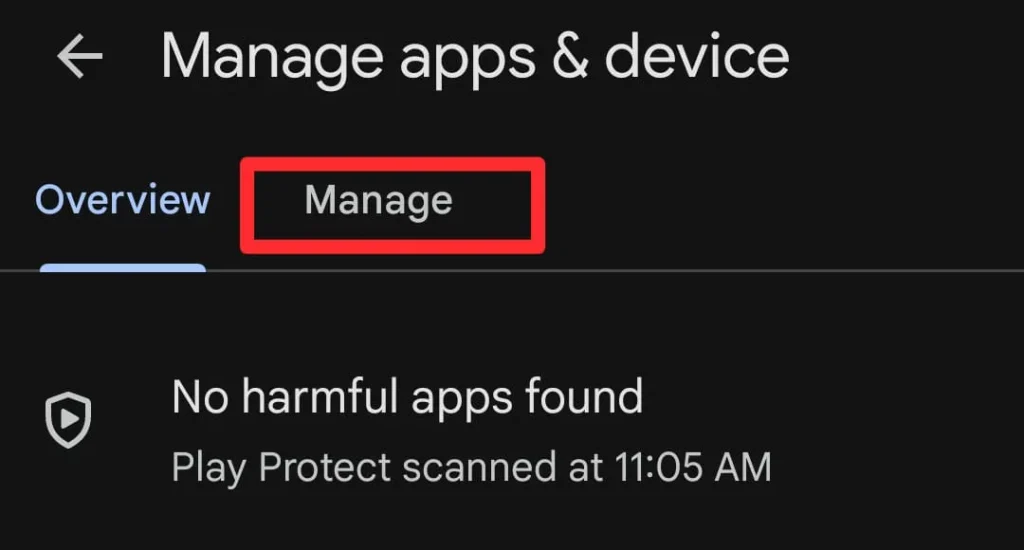
- Now, switch to the “Manage” section.
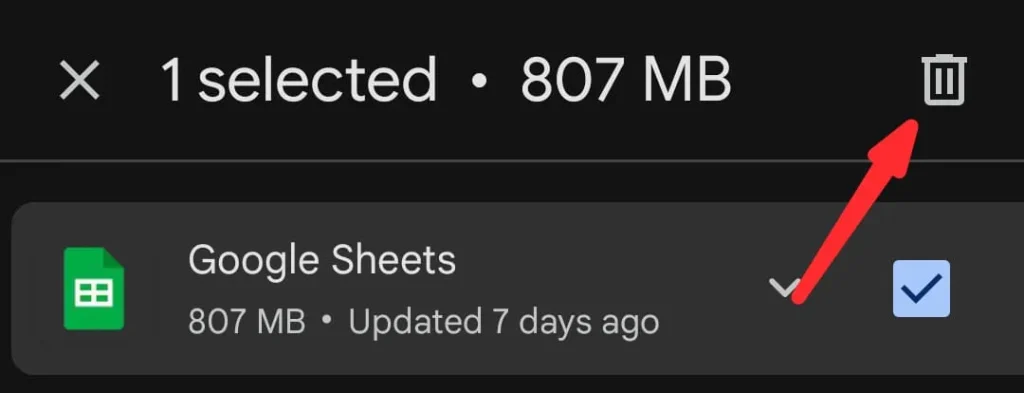
- Select the app you want to delete.
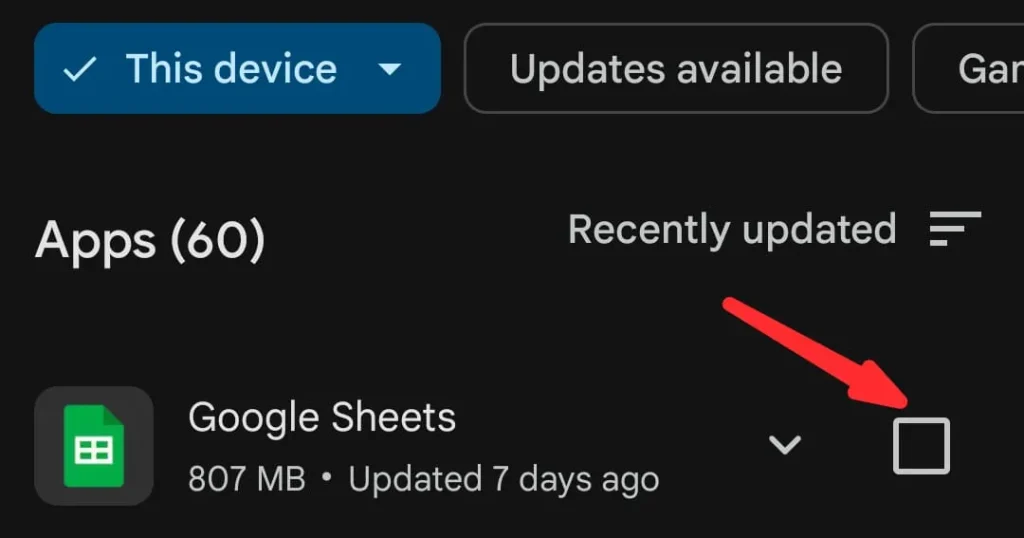
- Press the Delete icon.
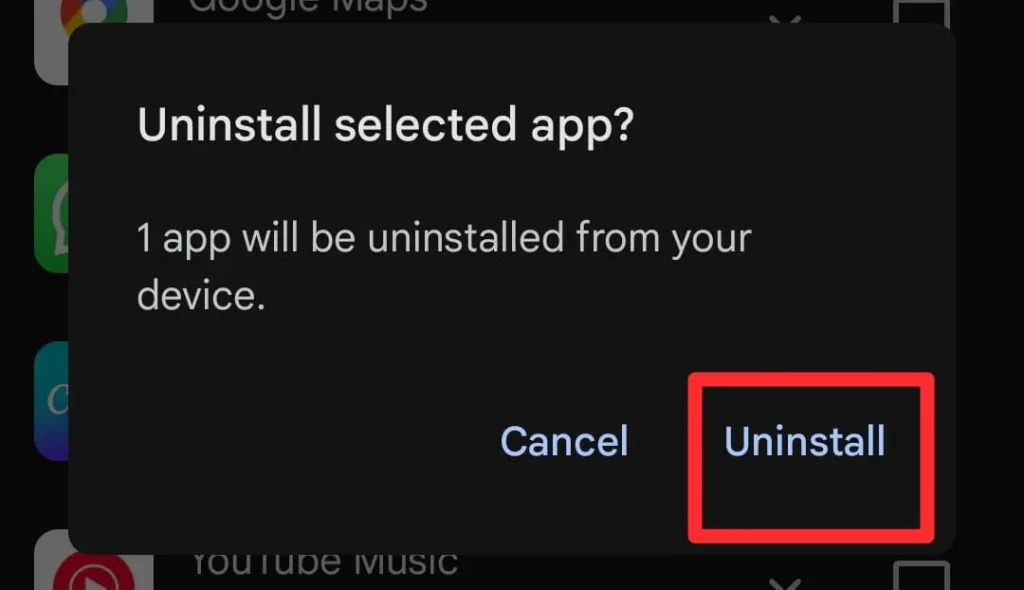
- Confirm the pop-up by tapping the Uninstall button.
Final Thoughts
These are the details on how to delete apps on Android. I have mentioned the key methods along with the essential steps to follow in this guide. Now, it is your turn to enlist the apps that are not playing a crucial role in your everyday life so you can delete them.
Further, you have to make sure that you are signed in with the Play Store. Otherwise, you will not be able to manage the applications. Moreover, you can hide apps on Android if you don’t want to delete them for a longer duration.
Want a guide regarding the deletion of a specific app or mobile? Let me know in the comments!
People Also Ask
Can I reinstall an app after deleting it?
Yes, you can reinstall it anytime from the Google Play Store if it is still available.
Will uninstalling an app delete its data?
Yes, uninstalling usually removes the app and its locally stored data from your device.
Why can’t I uninstall some apps on Android?
Some pre-installed system apps cannot be removed because they are required by the operating system.
How do I free up storage without deleting apps?
You can clear app cache, remove unnecessary files, or move photos and videos to cloud storage.
Can I disable an app instead of deleting it?
Yes, many pre-installed apps can be disabled to stop them from running and hide them from the app drawer.
Need custom app with amazing features?
Get a Quote